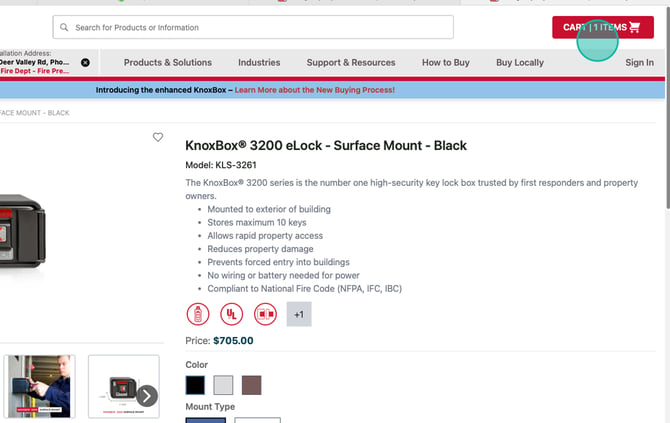
Knox products are linked to the jurisdiction where your building or property is located.
- Your local fire department or responding agency determines:
- Which Knox products they support
- How those products must be installed
- Available products may vary by department
To view products approved for your location, you must first select your responding department.
1. Select Your Department
-
Click START HERE next to the red location pin icon.
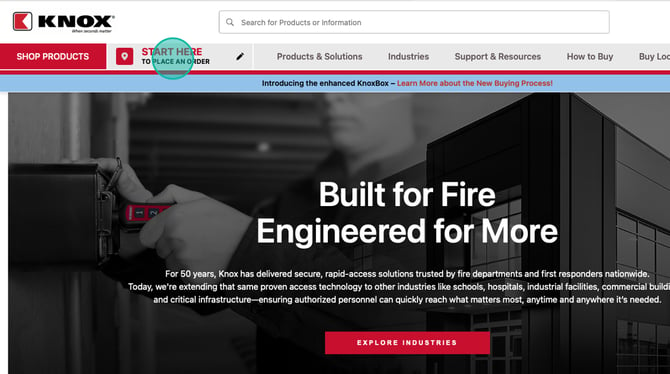
2. In the pop-up window you have two options:
- Search by your can Installation Address
- Search For Your Department by Name
- The installation address is the location where the Knox product will be installed.
- Enter the full installation address
- Business Name is required (If this does not apply, you may enter any name)
- Add Street Address
- Country, State and Zip
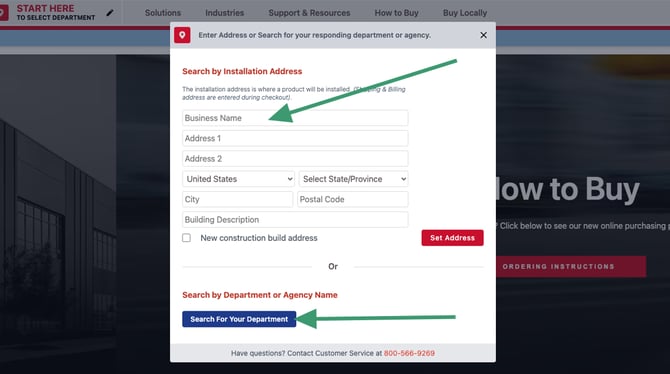
Tip! "Building Description" and "New construction build address" fields are optional.
Click on the "New construction build address" if the installation address is a new build -- this will bypass the address validation.
3. Click the red Set Address button
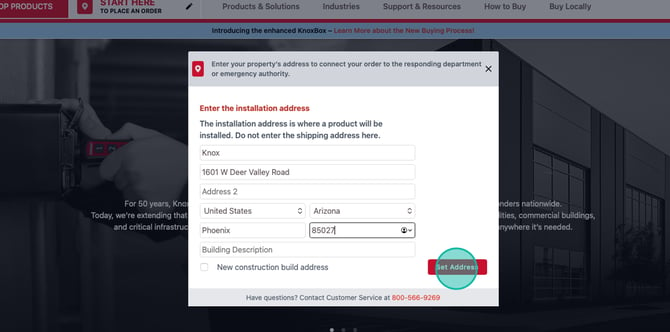
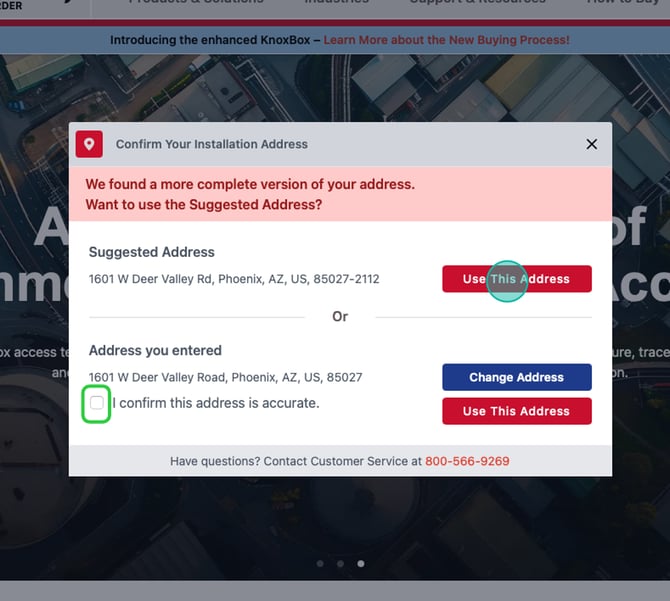
4. Confirm Your Installation Address
- Review the suggested address
- If the suggested address is not correct:
Click Change Your Address, or
Check the box confirming the address you entered is accurate
- Click the red Use This Address button to continue
5. Select and Confirm Your Responding Department
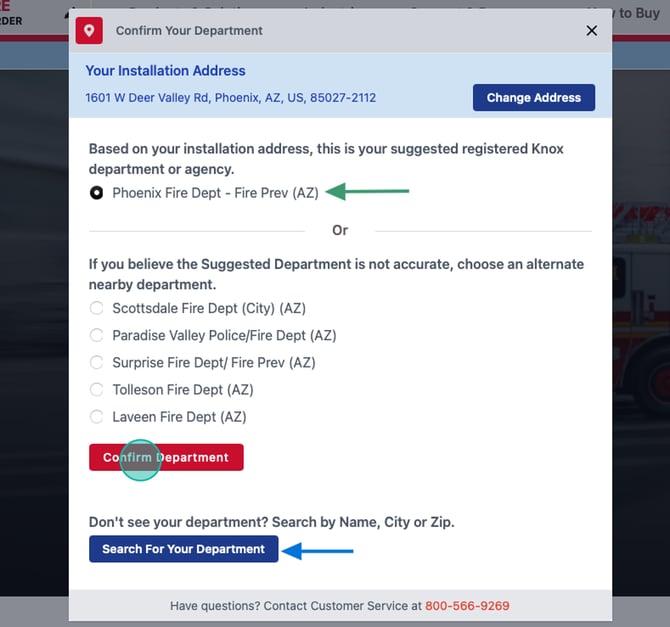
Based on your installation address, a responding fire department or agency may be suggested to you. If you confirm the suggested department is accurate, click the red Confirm Department button to continue.
Additional options:
- The next closest responding departments will be displayed
- You may select a different nearby department if the suggested one is not correct
- You can also Search for a Department by clicking the blue Search for Your Department button
6. If you click on the Search for Your Department button:
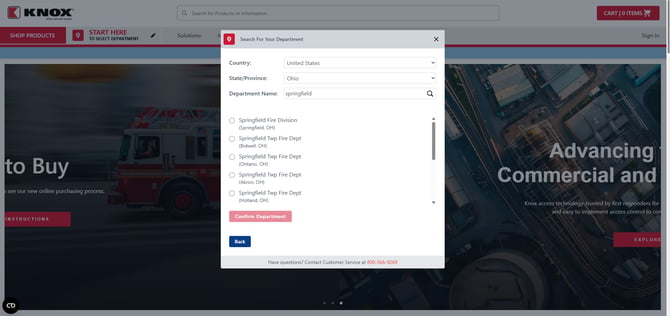
- Select your Country
- Select your State
- Then start typing the name of your department in the text field to see search results.
You can select the Department from the search results and click on the red "Confirm Department" button or click on the blue "Back" to return to the suggested department screen or to search by installation address.
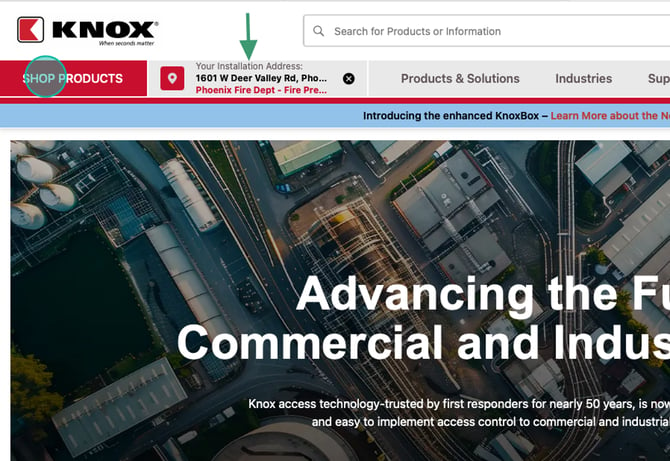
7. When you select and confirm a Department, the window will close and you will see your address and/or your selected Department Name in the Select Department widget.
To now see the products available for your selected department
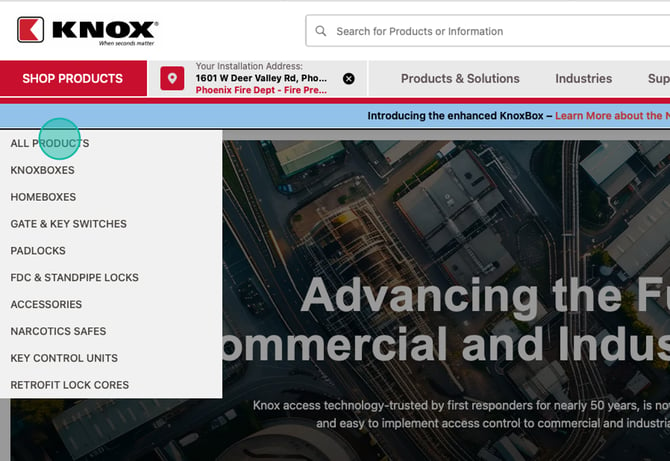
- Click SHOP PRODUCTS
8. Browse product categories to view products approved by your selected department
- Click All Products to view all available products for that department
- Note: Available products may differ by department
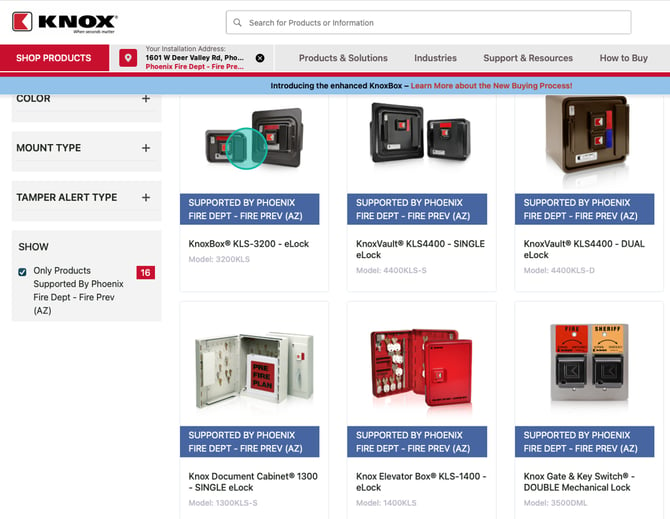
9. You will see only the products supported by the department you selected.
Select Your Product
Click on a product to view:
- Product details
- Available configurations
- Department-approved options
10. Click Add to Cart to add the product to your cart.
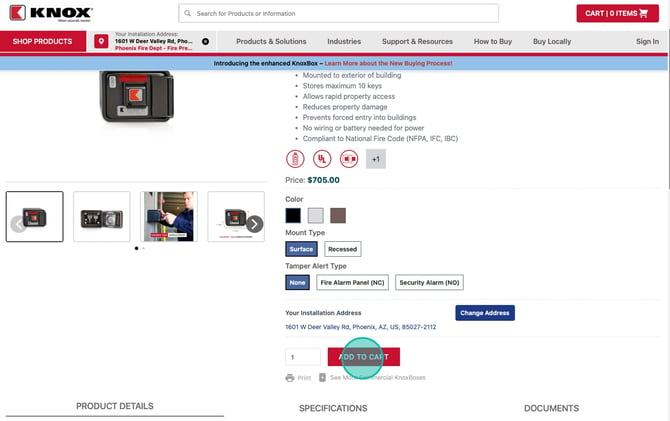
11. You can now see you have one (1) item in your cart.